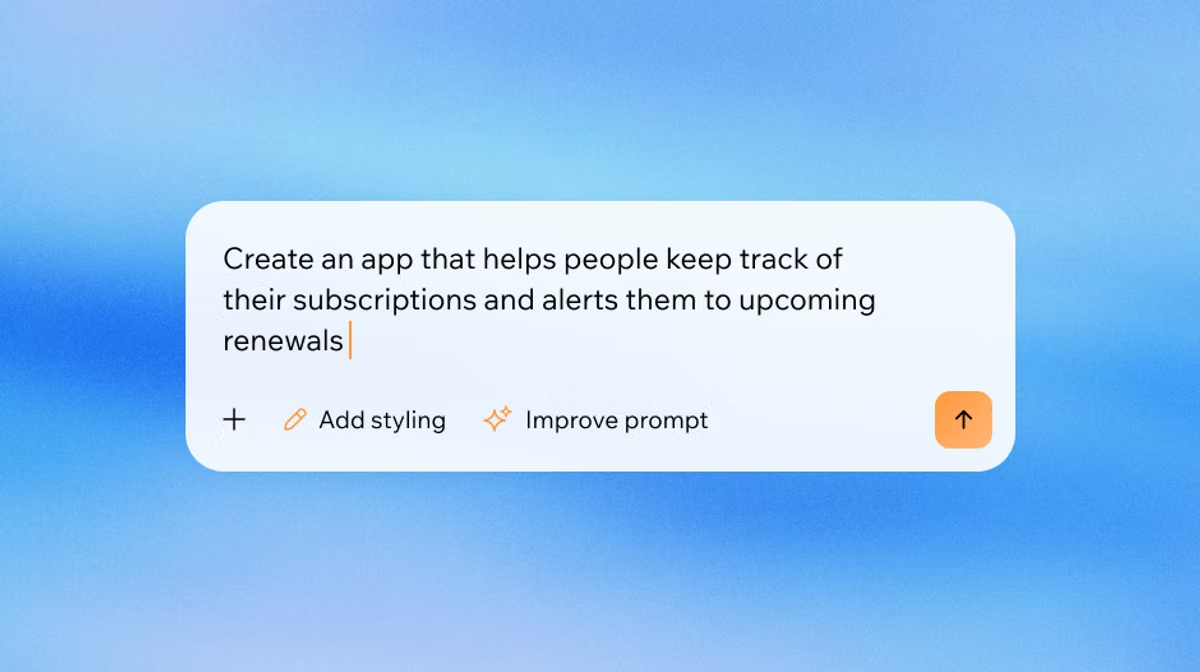
Launch your app faster with Base44. Start now →
Got a great idea for an app but the thought of coding makes your head spin? You're not alone. Many great app ideas never see the light of day because creating an app from scratch seems like a massive, complicated and inherently technical task.
But what if you could build a professional app without writing a single line of code? That’s where an AI app builder come in and as a result they're changing app development for everyone from beginners to developers.
App builders are platforms that give you the tools to design, build and launch an app through a simple visual interface. Think of it like building with digital LEGOs—you pick the pieces you want, arrange them how you like and create something amazing. They empower you to turn your vision into a reality, fast.
In this guide we'll work you through how to use an AI app builder regardless of your coding or technical knowledge and skills. Base44 removes every technical barrier between idea and product. Base44 no-code app builder handles complex infrastructure so users never have to.
Learn how to get started with an AI app builder.
Why use an AI app builder?
Before the advent of AI app builders, building an app was a long and expensive process. You either had to learn complex programming languages or hire a team of developers. This created a huge barrier for small business owners, artists, community organizers and anyone with a great idea for an app or product but a limited budget.

The benefits of an AI app builder remove that barrier. They handle all the complicated technical background work so you can focus on what matters most — the look, feel and function of your app. It makes app development accessible to everyone, regardless of their background. Anyone can now easily build an app with AI.
Learn more:
- What is an AI app builder?
- What is a no-code AI app builder?
- Best no-code app builders
- How does an AI app builder work
How to use an AI app builder
Using an AI app builder doesn't have to be difficult but it can be made even easier with thorough planning.
- Plan out what you want to build
- Choose an app template if relevant
- Design your app
- Use your AI app builder's features to build
- Improve your prompting skills
01. Plan out what you want to build
Before you jump straight into using an app builder, take a moment (or a few hours) to think about why you're building your app. This planning will not only determine how you use an AI app builder but which one you choose to create with too.
- What's the main purpose of your app? Is it to sell products, schedule appointments, share information or build a community?
- Who's my audience? What are they looking for, what they need and what features will make their task, job or life easier as a result?
- What are the must-have features? List the top 3-4 things your app must do or have. Is it a shopping cart? A product gallery?
The best apps don't just solve a problem, they integrate seamlessly into the user's life. When you design with real human behavior in mind, adoption becomes natural.
— Nina Boyd, PMM at Base44
Before you even starting using an AI app builder, its worth creating an outline of your app.
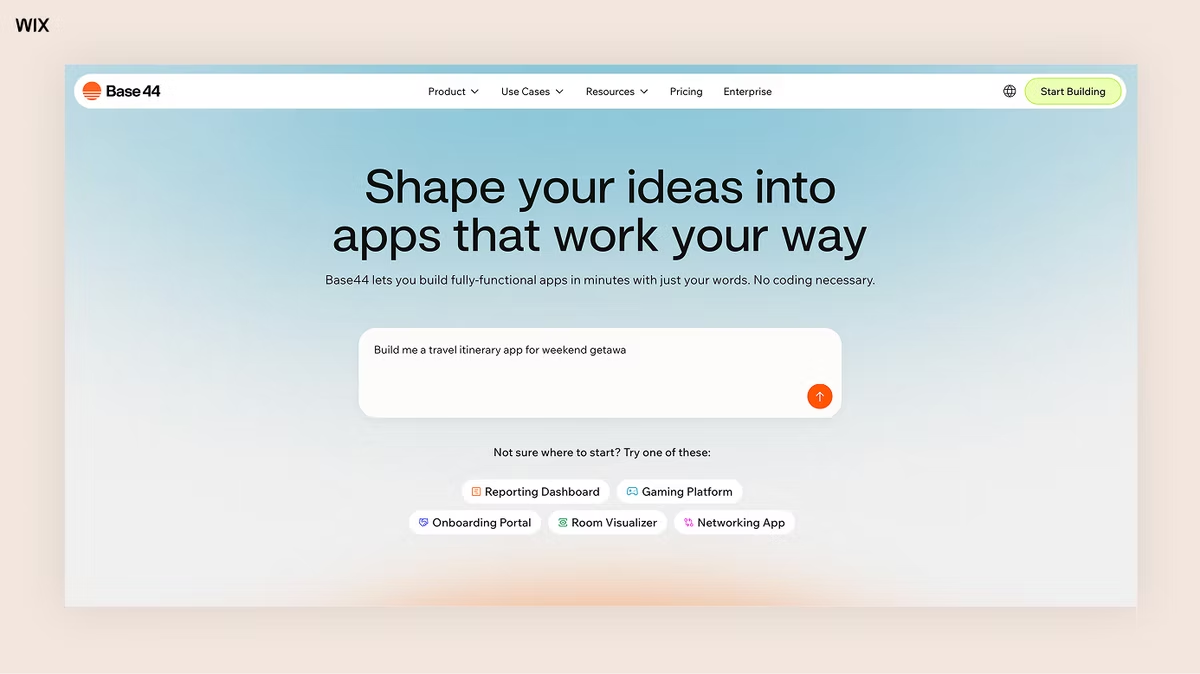
02. Choose an app template if relevant
If you're new to using an AI app builder, so generally, using an app template is a good way to start. Most AI app builders have multiple templates organized by use case:
- Productivity app templates
- Educational app templates
- Financial app templates
- Entertainment app templates
You don't necessarily need to find a template that fits your app perfectly, most are customizable. You can start with the one that feels closer to what you want to build and then use your AI app builder to personalize it.
How to use app templates to get started.
03. Design your app
Using an AI app builder you can design an app your way by:
- Changing your app's colors and fonts: Adjust the color scheme to match your brand's palette and choose fonts that reflect your style. All you have to do is enter the right AI prompts. Be as clear and as detailed as you can.
- Adding your own logo and images: Upload your logo and high-quality images that you need to include.
- Talking and rearranging: Move sections around, delete ones you don't need and add new ones from the features panel. Want your contact form at the bottom? Just prompt your AI app builder to move it there. Need to add a video gallery? Prompt your app builder to include one.
- Editing your content: Prompt your AI app builder to create, add and edit any relevant text.
04. Use your AI app builder's features to build
Here are some features your AI app builder should provide:
- Database management
- Email systems
- Storage
- Payment processing
- Auto-generated API points
- User authentication and management
- Builder chat and discussion mode
- Intelligent add-ons, like a chatbot
- Analytics dashboard
- Core integrations built-in, like Google, Zapier and Salesforce
- Workflow management
- Real-time collaboration
Not sure what features your own app needs?
Lets say you're creating an app for your restaurant or catering business, chances are your app will need your menu, prices and payment options.
If you're running a fitness business, your app might need a bookings feature, class schedules and some way for users to check if a class has spaces available or not.
Essentially using an AI app builder helps you build an app faster, with much less resources and potentially with more effective functionality. You just need to learn how to prompt it effectively.
Explore:
- Entertainment app development
- Productivity app development
- Finance app development
- Ecommerce app development
- Educational app development
- Operations app development
You can also use an AI app builder to first build a Minimum Viable Product (MVP), then iterate and improve it based on real user feedback.
05. Improve your prompting skills
Most AI app builders, like Base44, use chat functions and natural language to build. This means the better you get at prompting it, the better you get at using it. Want to know how to use an AI app builder more effectively? Improve your prompt engineering.
- Be clear, direct and succinct
- Be specific, not long winded
- Be detailed and to the point
For example, here's a 'bad prompt,' — Make a fitness app.
Here's a better one — Build a personal training app for coaches to manage remote clients.
And then even better, follow this prompt up with this detail:
User roles for the app
- Coach (Admin): Can create workout plans, view client progress dashboards and handle billing.
- Client: Can view their daily workout, log sets/reps, and upload progress photos.
Core app features
- Workout builder: A database of exercises that coaches can add to a weekly schedule.
- Progress tracker: A line graph showing the client's weight lifted over time.
- Chat: A simple messaging system for fitness clients to ask coaches.
Design vibe:
- Dark mode
- High contrast
- Sleek and professional
- Use neon green for primary buttons
Learn more: How to write better AI prompts
What to expect (and what it won't do)
An AI app builder gets you most of the way there fast, but it's not magic. Complex, highly custom logic can take more back-and-forth than a simple app. And if you ever want to move to a different platform, your app is generally tied to the one you built it in, so it's worth picking a tool you're comfortable committing to before you invest a lot of time customizing. None of this makes AI app builders less useful, it just means going in with realistic expectations gets you a better result.
How to use an AI app builder for free?
Base44's free plan gives you enough message and integration credits to build and test a real working app, no credit card required. You'll get a working prototype live before you ever need to decide if it's worth paying for. If you outgrow the free tier, paid plans scale up gradually rather than jumping straight to an expensive tier, so you're not stuck choosing between "not enough" and "too much."
How to use an AI app builder as a beginner?
If you're a beginner when it come to creating an app, an AI app builder like Base44 is the best solution to get started. Here's how to go about using it the most effectively at the start:
- Describe your app clearly: Most AI app builders start with a prompt and build via a conversational chat. Be specific, instead of "Make a fitness app," prompt with: *"*Build a workout tracker where users can log daily pushups, view a graph of their progress, and unlock badges for streaks."
- Let AI build your app skeleton: The AI will generate the screens, the database structure and the basic flow of your app. It essentially does the heavy lifting of setting up the architecture for you.
- Customize the last 20%: AI isn't perfect and for this reason you'll need to prompt to tweak colors, fix text labels and perhaps adjust the logic (e.g., ensuring the "Delete" button actually deletes data).